

 Environment Targeted Access Control (ETAC) helps you apply least-privilege access in BloodHound Enterprise. Use ETAC to limit which environments User and Read-only user roles can access.
How ETAC works
ETAC adds environment scoping to the baseline permissions granted by the assigned role. This can be useful for large, complex environments where users only need access to a subset of environments to perform their work.- ETAC is a premium add-on and may not be available in every tenant.
- ETAC applies to User and Read-only roles only. ETAC settings appear when you create or edit a user with one of those roles.
- If you do not select any environments, the user has no environment access by default.
- If you select specific environments, the user can access data for those environments only.
Roles still define the baseline permissions that control which actions a user can perform. ETAC further limits which environments those actions apply to.
What users experience
After you save ETAC settings, scoped users see only the data and navigation options allowed by both their role and ETAC configuration.- On the Attack Paths and Posture pages, users can see data from authorized environments only. Filters do not include unauthorized environments.
-
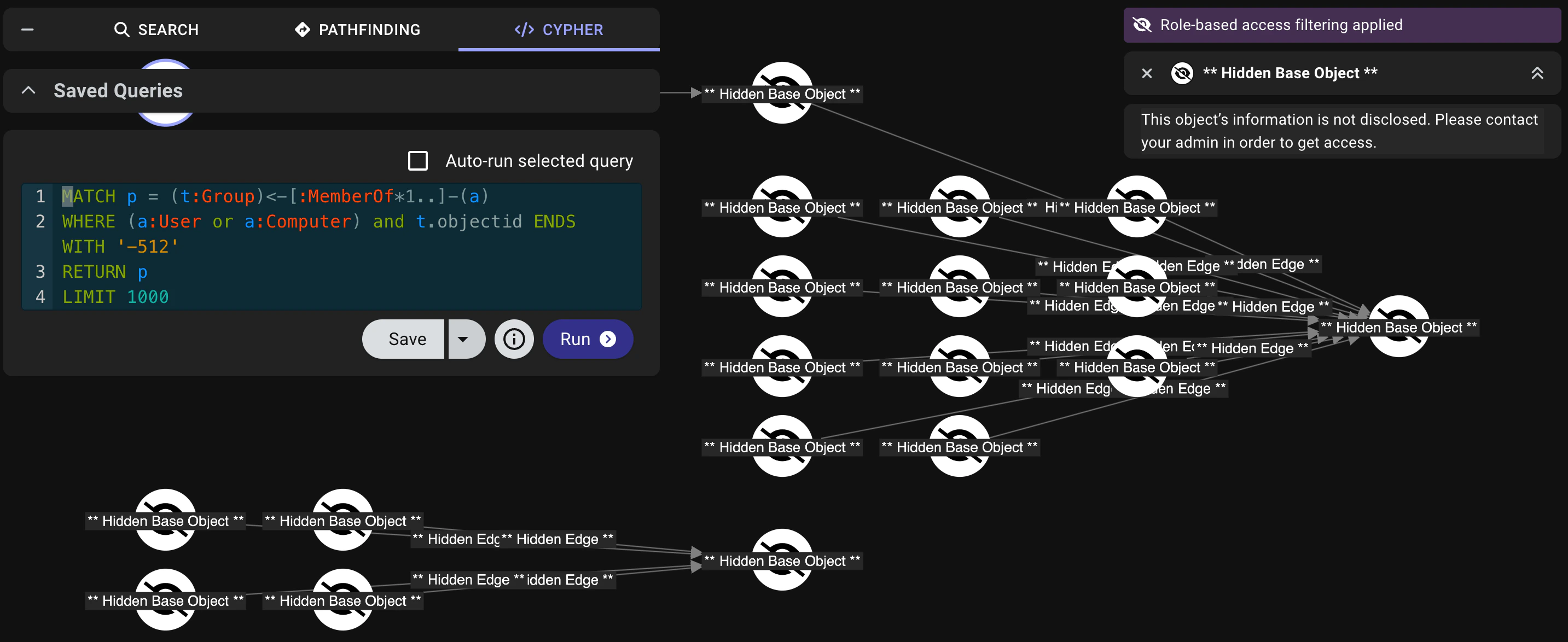
On the Explore page, users can access data from assigned environments only. If a search returns results from unauthorized environments, the graph still represents the full result set, but nodes and edges from unauthorized environments are hidden, and a message indicates that role-based access filtering is applied.
- On the Zone Builder page, users may receive a Permission Denied! message depending on their role permissions and ETAC scope. When access is allowed, users can view objects from their authorized environments only; available actions still depend on role permissions.
- Access to all other pages is unaffected, but the baseline permissions of the assigned role still apply.
Configure ETAC for a user
Use the create or edit user workflow to configure ETAC for an eligible role and assign environments.Create or edit a user
To create a new user, click Create User.To edit an existing user, click the hamburger menu next to the user record in the list and select Update User.
Assign an eligible role
In the Role field, select User or Read-only.When you select an eligible role, the ETAC options display in a new section beside the Add/Edit User form.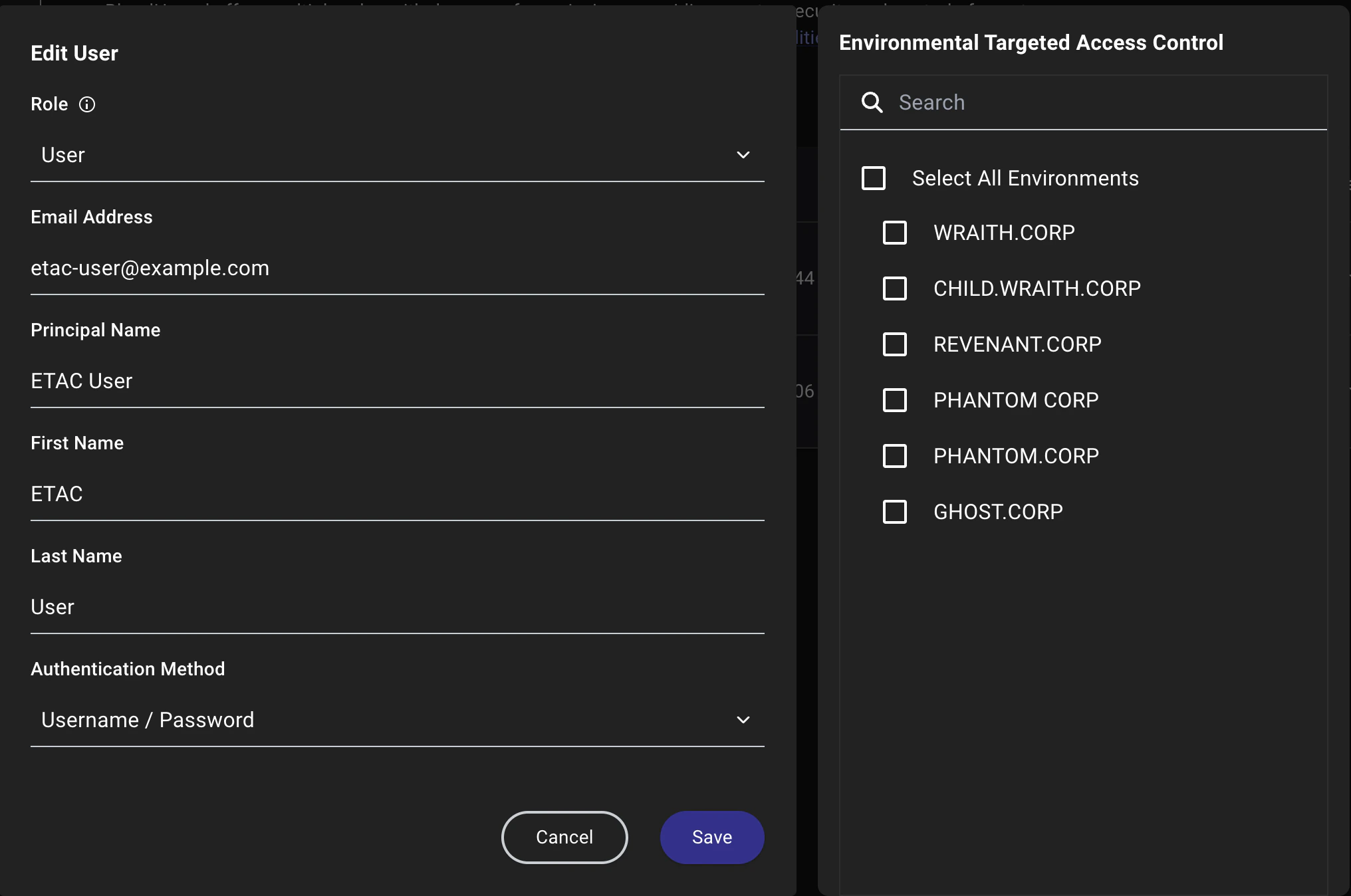
Review the default ETAC state
By default, no environments are selected, which means a user in this state has no environment access and cannot use the following pages until you select environments and save the user record:
- Attack Paths: The user sees no data and cannot use filters.
- Explore: The user can open the page, but sees a Role-based access filtering applied message and cannot see data.
- Posture: The user can open the page, but cannot see data or use filters.
- Privilege Zones: The user can open the page, but receives a Permission Denied! message and cannot make changes.
Select environments manually
Choose one or more environments from the list to grant user access to the data in those environments only.